
Enable it for your club.
Activation, access, participating divisions, contact checks, safe review links and first-round verification.
Download Owner & Administrator Manual ↓Player insights · Performance Centre
Collect structured feedback from the Skip and Third, then explore individual performance and opponent matchups in one place.
PlayersPlayer RankingsPerformance Centre
See it in use
This is a screenshot walkthrough of the real interface using synthetic players. Choose a step to see what happens. It does not create reviews, open private links or send texts.
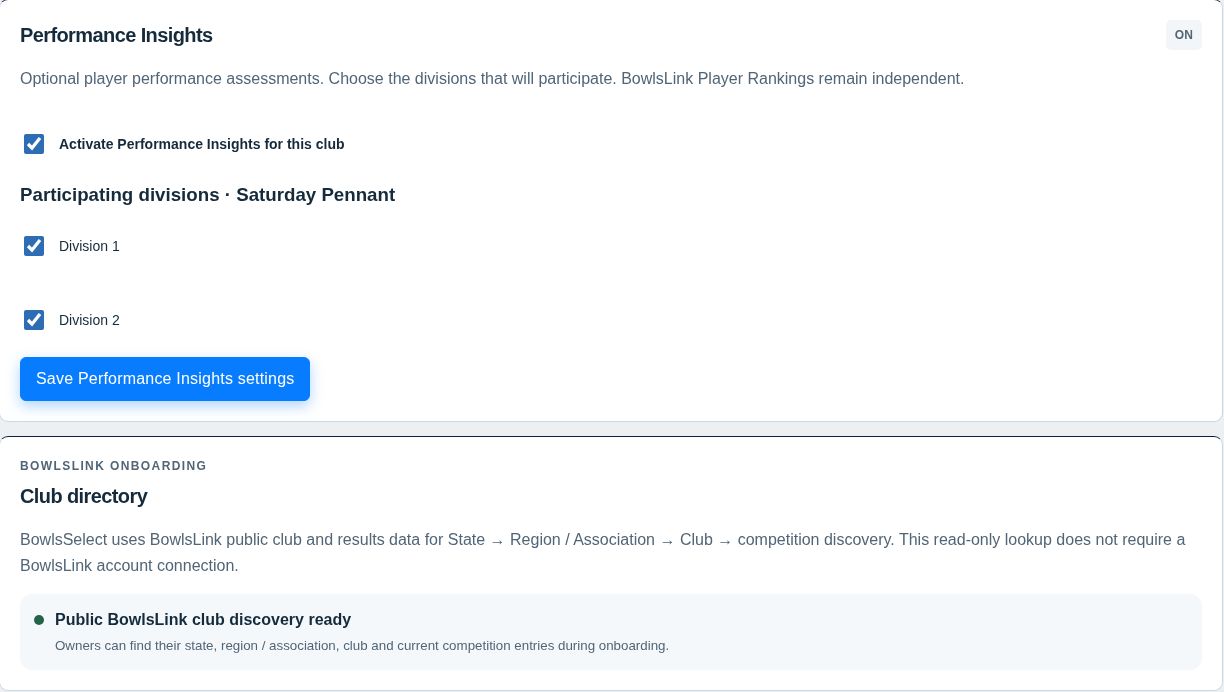
Owner: open Club Setup → Performance Insights and enable the feature.
Then open Player Rankings → Performance Centre → Feedback Centre. Select the divisions taking part and save. A division must participate before its assessments can be prepared.
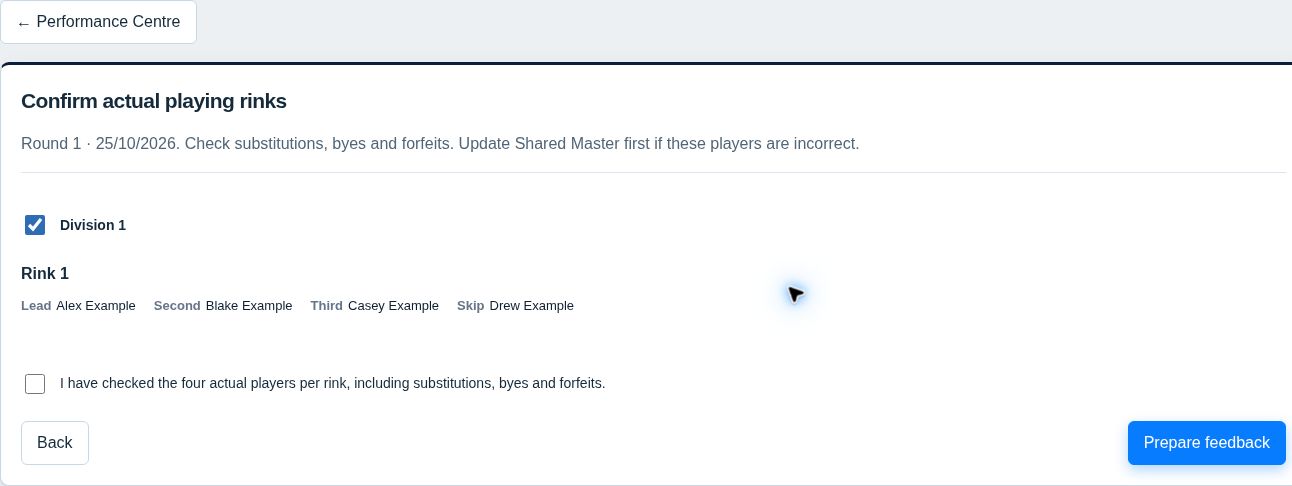
Enter the round name and match date, then choose Preview Shared Master rinks.
Check the four players, positions and participating divisions. Account for substitutions, byes and forfeits. Correct Shared Master first if needed, then confirm the lineup before preparing feedback.
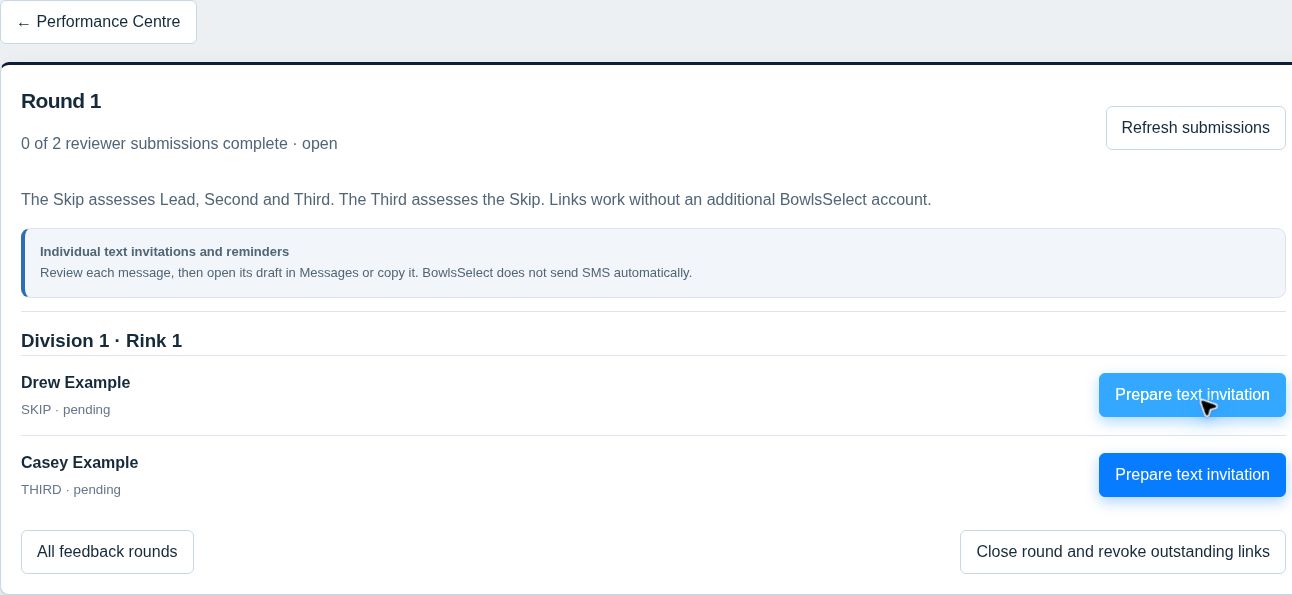
Choose Prepare feedback to open the round’s submission tracker.
The Skip assesses the Lead, Second and Third. The Third assesses the Skip. Each receives their own private, expiring review link. The tracker shows pending and completed submissions; preparing a round sends no messages.
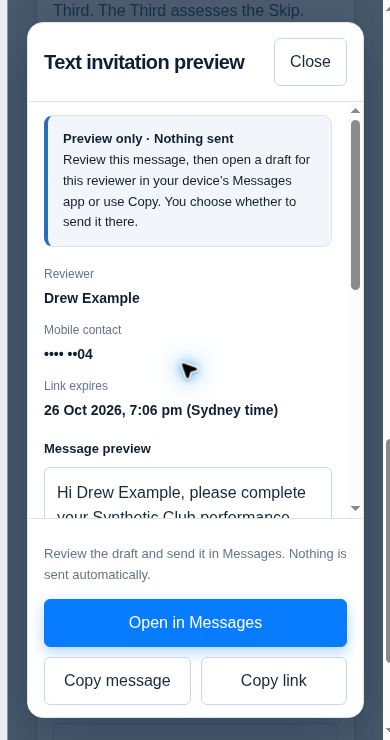
Choose Prepare text invitation, check the reviewer and message, then tap Open in Messages.
Your device opens a draft using that reviewer’s saved mobile. Check the recipient and press Send yourself. Copy message and Copy link are also available; use them when a mobile is missing or Messages is unavailable. BowlsSelect does not send SMS automatically.
The assigned reviewer opens their private link and completes the players shown.
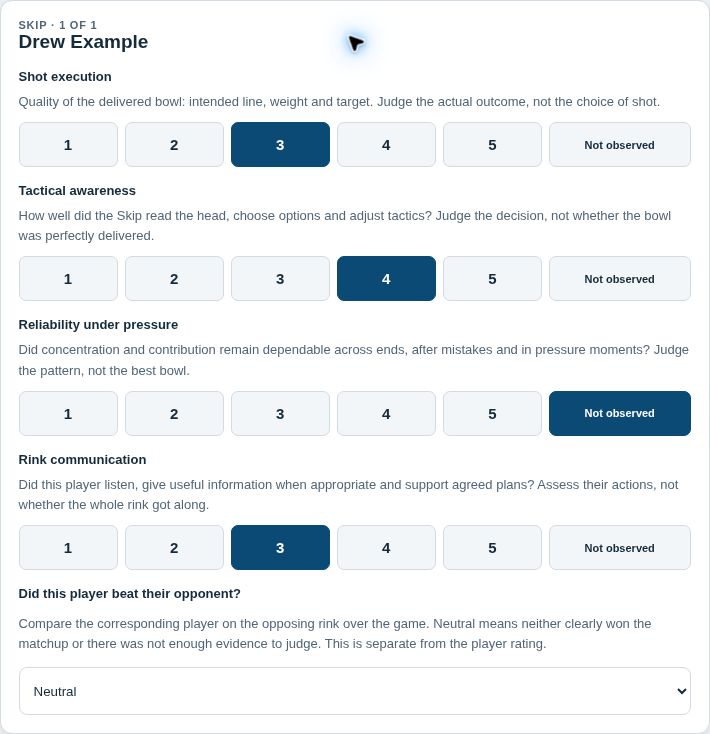
Rate four categories from 1 to 5 against the division and position. 3 means At Standard. Choose Not observed where appropriate, and record the separate positional-opponent outcome. There are no written comments. Check the responses before submitting.
Open Individual Performance, filter by player, division or position, then select a player’s name.
The profile separates recorded reviews, numerical observations, category scores and opponent W–L–N. Read those alongside the playing context and review history. A small amount of feedback is a starting point for discussion, not a selection decision.
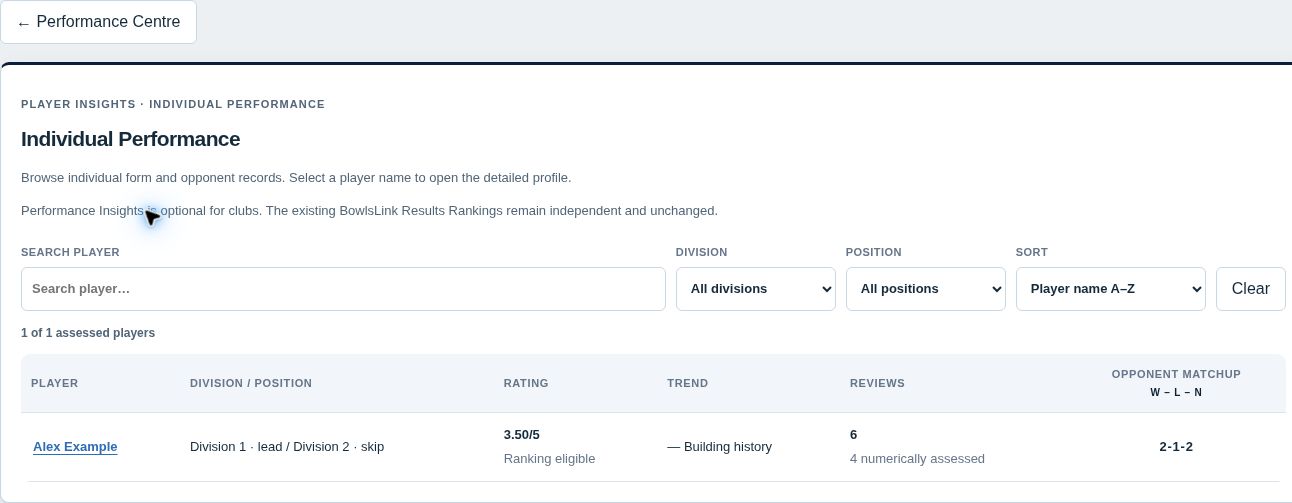
Individual Performance
Reviews cover Shot execution, Tactical awareness, Reliability under pressure and Rink communication. Ratings describe the player’s division and position.
Not observed is excluded from the numerical score. It is not zero. Numerical form uses the latest five numerically assessed matches; ranking eligibility starts after three. The profile shows how much evidence supports the rating.
Keep the context
W–L–N means Win, Loss and Neutral against the positional opponent. These outcomes are counted separately and do not add to the performance rating. A review with no numerical observations can still record an opponent outcome.
Performance Centre adds structured club feedback alongside the existing evidence. BowlsLink Results Rankings remain independent and unchanged.
Who can use it?
Owners and Chairpersons can open and manage Performance Centre within their authorised competition. Ordinary Selector and Viewer accounts do not gain these controls. Assigned Skips and Thirds use their private review links without an extra BowlsSelect account.
Help for each role
The updated manuals include Performance Centre screenshots and practical steps alongside the existing club workflows.
Activation, access, participating divisions, contact checks, safe review links and first-round verification.
Download Owner & Administrator Manual ↓Confirm the playing lineup, prepare reviews, send individual invitations and reminders, and follow submissions.
Download Chairperson Manual ↓What the ratings mean, who can open Performance Centre, and how an assigned reviewer completes the private form.
Download General User Manual ↓Practical questions
The club Owner must enable Performance Insights in Club Setup. You also need Owner or Chairperson access to the selected competition. Then open Players → Player Rankings and look beside Sync BowlsLink. Participating divisions are selected inside Feedback Centre.
No. It displays a preview. Open in Messages prepares a draft on a compatible device; you review and send it there. Copying a message or link does not mark it as sent. Your normal mobile-service terms apply when you send from your phone.
Use the assignment’s Link options to replace its link when necessary. Replacement invalidates the previous link, so send the new one to the correct reviewer. Reopening an invitation or reminder preview keeps the current link. Closing a round revokes outstanding links; it does not remove submitted history.
Open the existing feedback round and check its status. An already prepared round is recovered rather than duplicated. A closed round retains its reviews; use the correct upcoming round and confirmed lineup for new feedback.
No. A private link provides access to its assigned review. Send it only to that reviewer and keep it out of group messages, public pages and screenshots. The links shown in this demonstration are synthetic and do not open a real review.
Select Smarter. Together.
Begin with one confirmed round and your participating divisions.